 Knowledge Base
Announcements
Publish in-app announcements to your venue's customers, target them by list or individual, and reach them instantly with a mobile push notification.
Announcements are how you tell your customers something they need to know, right where they already are: in the Thril app. A power outage, a holiday schedule, a new league sign-up, a court resurfacing closure. Unlike a marketing email, an announcement is treated as a service message, so it reaches the customers you target whether or not they have opted in to marketing. You can optionally pair it with a push notification to land it on their phone the moment it goes live.
This page covers what an announcement can do, who sees it and where, and how targeting and push notifications behave. Announcements are scoped to a single venue, so "everyone" means the customers of the venue you are working in.
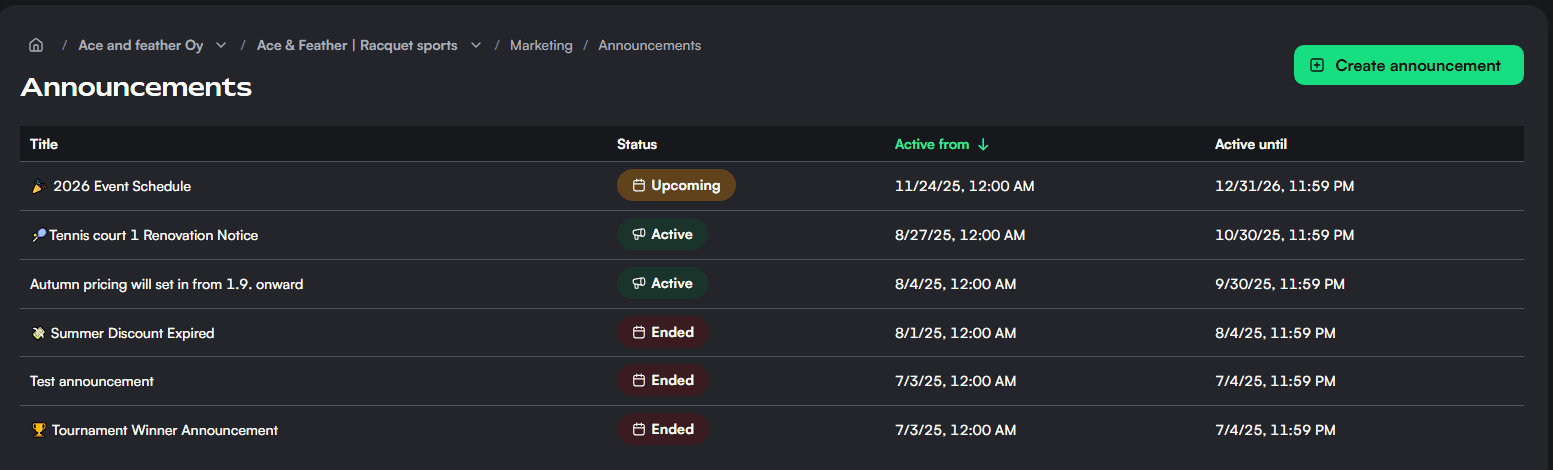
What an announcement contains
An announcement is short and focused:
- Title. The headline customers see first.
- Content. A rich-text body, so you can add links, formatting, and structure to longer notices.
- Active period. A start date and time, and an end date and time, that govern when the announcement is live.
The content area gives you enough room to explain a change properly, but the title is what most customers read first, so keep it clear and specific.
The active period is interpreted in your venue's time zone. The start time also controls when a push notification is sent, so set it to the moment you actually want customers to hear about it.
Draft, publish, and the announcement lifecycle
You can save as draft to keep working, or publish to make the announcement live according to its dates. The status you see on each announcement is worked out automatically from its dates and draft flag:
- Draft. Saved but not published. Only you and your team see it.
- Upcoming. Published, with a start date still in the future. It will appear to customers automatically when that time arrives.
- Active. Live now and visible to its audience.
- Ended. Its active period has passed.
This means scheduling is built in: publish an announcement with a future start date and it simply waits, going live on its own. There is nothing to come back and switch on.
Reaching phones with push notifications
Beyond appearing in the app, an announcement can send a push notification to recipients' mobile devices. The push carries your venue name and the announcement title, so customers see who it is from and what it is about at a glance.
A few things are worth understanding about how the push behaves:
- It is sent once, at the announcement's start time. If you publish with a future start date, the push waits until then. In practice it can arrive within a few minutes of the start time rather than to the exact second.
- It cannot be re-sent. Once an announcement's push has gone out, editing the announcement will not trigger a new one.
- Push targets Thril mobile app users who have device notifications enabled. Customers who have notifications turned off, or who use Thril on the web, do not receive a push, but the announcement still appears in their notification list the next time they open the app or web app.
Because the push only fires once at the start, editing a published announcement updates what customers see in the app but does not notify them again. If a change is important enough that customers must be alerted, a fresh announcement is the way to send a new push.
Choosing who sees it
By default an announcement is shown to everyone, meaning all of the venue's customers. Alternatively, choose selected customers and target precise audiences using any combination of customer lists and individual people. You can also exclude specific lists or individuals, and exclusions always win: an excluded customer will not see the announcement even if they fall inside the included audience. When you target selected customers, an estimated recipient count helps you confirm the reach before publishing.
Announcements are service communication, so they are sent regardless of a customer's marketing-consent status. This is the key difference from marketing emails, which only reach customers who have opted in. Use announcements for things people genuinely need to know, not promotions.
When you target a dynamic customer list, the push goes to the list's most recently synced membership, while the in-app visibility is re-evaluated as customers open the app, so people added to a qualifying list afterwards still see the announcement.
Where customers see announcements
Announcements appear across the places customers naturally look, in both the Thril web app and the mobile app:
- On the venue's profile, and alongside the reservations, classes, events, courses, and leagues views, so a relevant notice is visible wherever a customer is browsing or booking.
- In the mobile app, the latest announcements surface on the venue profile, and an unread announcement can present itself automatically when a customer opens the venue to book.
Customers see the most recent announcements first, with an unread indicator, and can expand to view the full history. Whether an announcement has been read is tracked on the customer's own device, so there are no read receipts on your side.
Editing, archiving, and permissions
You can edit an announcement at any time. Editing a published announcement updates the displayed content but, as noted above, does not send another push, and the recipient targeting becomes read-only once a push has been sent.
Removing an announcement is an archive rather than a hard delete: it ends the active period immediately, so the announcement disappears from customers right away while its record is preserved. An announcement that has already ended cannot be archived again, since it is no longer live.
Managing announcements requires a venue admin or venue clerk role for the venue.
A few practical notes
- Keep titles short and specific so they read well both in the app and in a push notification.
- Set the start time to when you want customers to actually hear about it, since that is when any push is sent.
- For a notice every customer must see, leave the audience as everyone and enable the push. For something relevant only to a segment, target a customer list instead.