 Knowledge Base
Manage membership holders
Add, inspect, update, pause, discount, and remove members while preserving accurate payment and membership history.
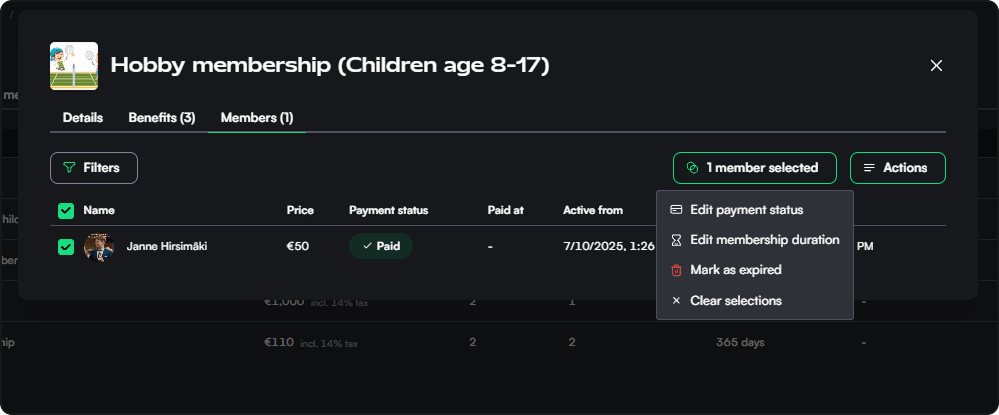
Open a membership and select Members to manage its holders. The list shows payment status, purchase time, validity, recurring state, and other operational information. Use Manage member for one person's details, discounted periods, pauses, and integrations.
Add a member manually
Use Add user to membership when staff need to activate a venue customer without sending them through customer checkout.
Select the customer and payment status:
- Pending: payment is not yet due;
- Due: the customer is expected to pay;
- Paid: payment is treated as handled, including when collected outside Thril.
These are administrative states. Selecting Paid does not charge the customer, and changing a state does not issue a refund.
The membership's configured trial is applied to a manually added recurring member even if they held the membership before. Introductory pricing is assigned only when they have no earlier history for that membership. The form does not separately collect a fixed trial price.
Understand member-specific terms
The detail view helps distinguish product settings from this member's stored agreement. Review:
- active-from and active-until dates;
- current normal member price;
- payment status and payment history;
- recurring period and next billing boundary;
- fixed or termination periods remaining;
- trial end and pricing order;
- pauses and integration status.
Use these stored values when explaining the member's next charge or end date. The current product configuration may have changed since they joined.
Update selected members
Batch actions can update selected members' price, validity, or payment status. Before a financially significant batch change, confirm the affected cohort and intended terms with the person responsible for memberships.
Change the normal future price
Use the member price action when selected existing members should move to a different standard recurring price. This is different from editing the product, which affects future joins, and from Goodwill pricing, which applies temporarily.
Change validity
Update the active dates when correcting or extending an individual agreement. Making an expired member active again can restore eligible access integrations.
Use Make indefinite when the membership should no longer have an end date. Use Mark as expired or the removal action when access and benefits should end now.
Change payment status
Use status edits to record the real payment situation. They do not collect, cancel, or refund a payment. Check the payment record first when a customer reports a failed or duplicated charge.
Deferred-payment workflow
A practical deferred one-time flow is:
- Configure a one-time membership with deferred payment.
- Customers join and become active with Pending status.
- Confirm the final membership price before collection.
- Use the action that marks membership payments due.
- Customers complete payment through the available checkout.
- Follow up Due members according to your venue's process.
Marking payments due applies the current product price to active members. It is a bulk transition, not a reminder-only action.
See Membership billing, contracts, and renewals for how pending and due states fit the one-time payment lifecycle.
Export and batch operations
Use export before a large operational change when you need a reviewable list of affected members. Keep batch selections narrow and verify one updated member afterward, especially for price, payment status, and validity changes.
Discount or pause one member
Under Manage member:
- use Discounted periods to add or deactivate temporary renewal prices;
- use Pauses to suspend benefits by date or skip complete recurring periods;
- use integration details to inspect membership-based access.
Used and deactivated price adjustments remain visible. Completed date pauses and active period pauses also preserve relevant history; a scheduled period pause deleted before it starts is removed.
See Goodwill pricing and Membership pauses before changing billing arrangements.
Remove or expire a member
Removing a member sets their active end to the current time. Benefits that require an active membership end, but the record remains in history. This is not the same as customer cancellation of a recurring agreement and does not run a notice-period flow.
Use the correct ending action for the situation:
- customer cancellation for a normal recurring cancellation;
- automatic completion for a fixed contract;
- expiry for a one-time or staff-ended entitlement;
- staff removal when access should end now.
See End a membership for the consequences of each path.
Before escalating a member issue
Collect:
- membership and customer;
- active dates and next renewal boundary;
- current member price and pricing order;
- fixed or termination periods remaining;
- pause history;
- payment status and the relevant payment;
- access integration state, if involved.
This separates product configuration, member-specific terms, payment processing, and external-system issues before support investigates them.
For cohort changes, see Import and migrate members.
Membership billing, contracts, and renewals
Understand initial payments, recurring periods, fixed and notice-period agreements, member price snapshots, renewal grants, and failed-payment behavior.
Import and migrate membership holders
Import prepared member lists or copy holders between membership products with clear checks for eligibility, billing, benefits, and access.